
NickWatch: Parent App
Watchinu by TrackimoParenting
3.249.00 Reviews
- Version
- 1.1.15
- Installs
- 100.00K
- Age Rating
- Everyone
Screenshots
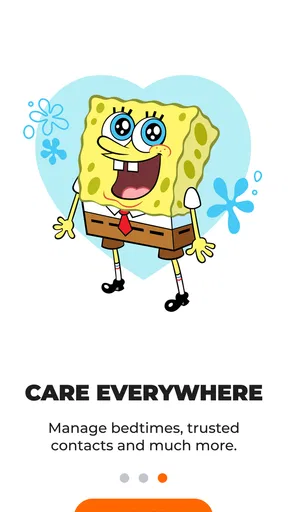
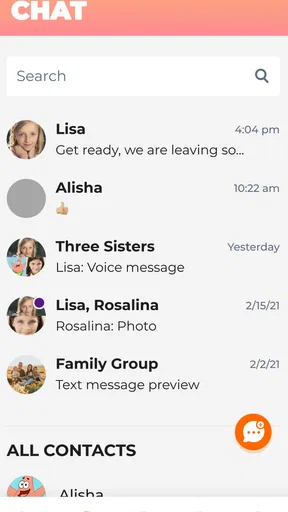
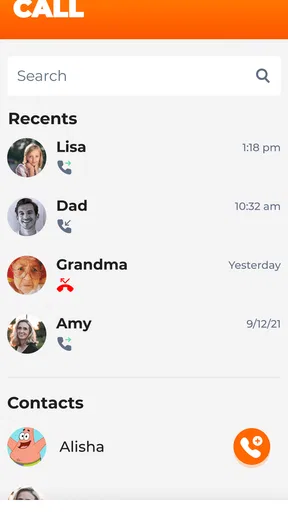
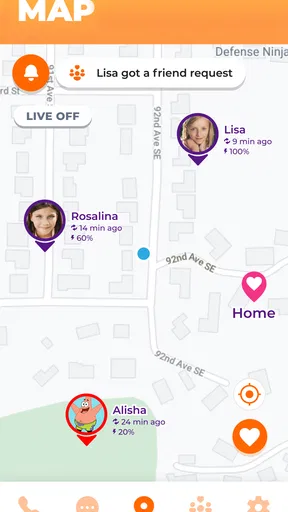
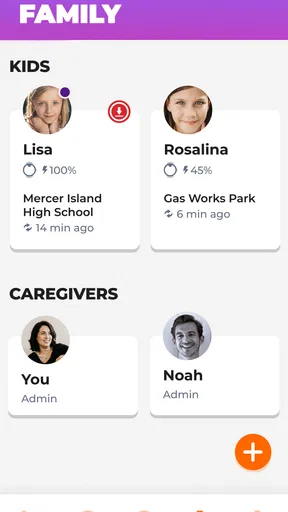
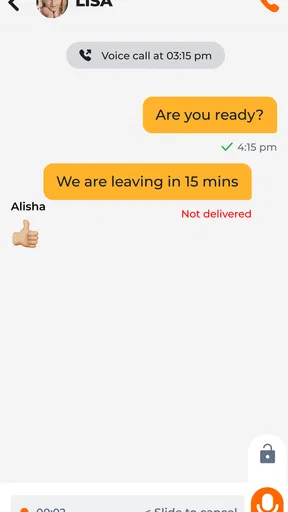
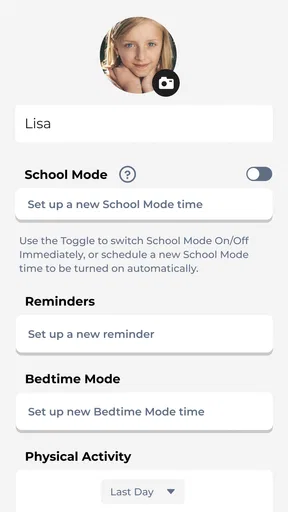
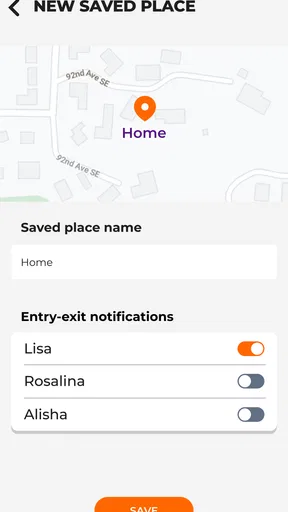
Our Review of NickWatch: Parent App
 Analysis by Appyee
Choosing a parenting app is rarely about finding the most impressive-looking download. I want something that makes a real family task easier, especially when a child’s connected device is involved. NickWatch: Parent App is built for that supporting role: it is the app used to activate and manage NickWatch features, rather than a general parenting journal, school planner, or broad family organizer. That focus makes its purpose easy to understand, but it also means its usefulness depends heavily on whether your family already uses the NickWatch ecosystem.
I approached it as a first-time parent would: install the app, look for the quickest route to a working setup, and then consider what daily management feels like after the initial moment. The app comes from Watchinu by Trackimo and sits in the Parenting category. It is free to install, rated for Everyone, and the current release is version 1.1.15. Those details make it approachable for families who want to explore the companion experience without paying for the download itself.
The important expectation to set is that this is not a standalone parenting solution. Its job is to help a parent activate and manage NickWatch features. If you are looking for screen-time coaching, shared chores, meal planning, or a child-development library, this is the wrong kind of app. If you have a NickWatch device or are preparing to use one, the app becomes much more relevant because it is the control point for the parent side of that experience.
What the first launch is really for
The first launch should be treated as a setup session, not casual browsing. I would keep the NickWatch device nearby and make sure the adult who will manage it is the person completing the process. That simple choice avoids a common family problem: one person begins activation, another person later tries to take over, and nobody is quite sure which account or setup step was used.
Because the app is specifically designed to activate and manage NickWatch features, the meaningful first goal is not to inspect every screen. It is to reach a state where the parent app and the child’s NickWatch experience are connected well enough for management to make sense. I recommend moving through the setup in one uninterrupted sitting instead of starting while rushing out of the house.
Before opening it, I would also decide who needs access in your household. A child may use the watch, while one or two adults handle management. Even without turning setup into a complicated family meeting, agreeing on the main responsible adult helps keep changes consistent. It is a small operational detail, but it matters more here than it would in a typical parenting information app because this software sits between a parent and a connected product.
The app has passed the early adoption stage, with over one hundred thousand installs, but its average rating is 3.2 from around three hundred ratings. I read that as a reason to approach setup carefully rather than as an automatic rejection. Companion apps can feel excellent when the device connection is straightforward and frustrating when the relationship between app, account, and hardware is unclear. Your first few minutes should therefore be used to establish that basic relationship before exploring optional management choices.
Making the setup less stressful
My practical advice is to keep the phone charged, use a stable connection, and avoid switching between several family members’ phones during activation. None of those steps is glamorous, but they reduce the number of variables if something does not appear immediately. If the app asks you to continue through a sequence, finish that sequence before closing it, then return to the main screen and check whether the NickWatch relationship is visible.
I would also read each label instead of tapping through automatically. In a companion app, a button that sounds like it merely opens a feature can sometimes be the step that establishes access or confirms a device relationship. The safest habit is to pause after each major action and look for a visible change: a connected device, an activated feature, or a management area that was not available before.
Another useful habit is to separate activation from customization. First make the core connection work. Only after that should you spend time adjusting the experience for your child. This gives you a clear baseline. If something later seems wrong, you will know whether the issue appeared during activation or after a change you made yourself.
The first meaningful success
For a new user, the first successful action should be simple and verifiable: activate the NickWatch experience and confirm that the parent app recognizes what it is meant to manage. I would not judge the app by how many settings I can find during the first minute. I would judge it by whether I can move from installation to a clear management state without guessing what to do next.
A realistic example would be a parent preparing the device before a child leaves for an afternoon activity. The parent installs the app at home, completes activation with the NickWatch close by, checks that the management area is available, and only then hands the device to the child. That order is better than giving the watch to the child first and trying to solve the parent-side setup from the car or while already away from home.
Once activation is complete, I would perform one small management task and then stop. The purpose is to confirm that the app is not merely installed but usable. Making one controlled change gives you confidence that you understand where NickWatch features live and how the parent’s actions affect the connected experience. It also creates a useful reference point for another adult who may need to help later.
This is where the app’s narrow focus works in its favor. It does not need to compete with a long list of unrelated parenting tools. Its value comes from giving the adult a dedicated place to manage NickWatch. For families already committed to that product, a focused companion is easier to understand than a large family app filled with features that have nothing to do with the child’s watch.
Where new users may hesitate
The most likely confusion is assuming that installing the parent app is the same as completing the whole NickWatch setup. It is better to think of installation as the beginning of the relationship between the parent, the app, and the device. If you open the app without the relevant hardware or without knowing which adult will manage it, you may understand the purpose but still feel unable to complete the useful part.
A second point of friction is the difference between viewing a feature and managing it. The app’s role is not simply to show information about NickWatch. It is intended to activate and manage NickWatch features, so a first-time user should look for actions that establish control rather than treating every screen as a passive dashboard. When in doubt, return to the main management area and identify which action changes the setup, not just which one displays an explanation.
Families can also become confused when several adults use different phones. My recommendation is to establish one primary setup device first. After the first successful session, decide whether another adult genuinely needs access and introduce that person deliberately. This avoids the common mistake of repeating activation because a second parent assumes the app must be configured again on their phone.
The rating of 3.2 suggests that the experience will not be equally smooth for everyone. I would be especially patient during the first connection and avoid making several changes at once. If something appears not to work, retrace the last completed step before starting over. A careful sequence is more useful than repeatedly reinstalling the app without knowing which part of the process caused the problem.
How it compares with ordinary parenting apps
Compared with a general parenting app, NickWatch: Parent App is much more device-dependent. A general app may provide advice, routines, calendars, or family notes on its own. This one is valuable because it supports a particular NickWatch setup. That is a strength when you own the related device and a clear limitation when you do not.
It also differs from using the child’s device without a dedicated parent app. A parent might prefer informal rules and direct conversations, and that can be perfectly reasonable for an older or more independent child. The dedicated app becomes more useful when the family wants a central adult-facing place to activate and manage the NickWatch features rather than handling everything through the child’s side.
I would not choose it as a replacement for a broad family organizer. It is not the app I would open to plan school pickups, record medical information, or coordinate household chores. I would choose it when the decision has already been made to use NickWatch and I need the parent-side management experience to be available on Android or iOS.
That distinction helps avoid disappointment. The app should be judged as a companion tool, not as a complete digital parenting system. Its success is measured by how clearly it supports NickWatch management, not by how many unrelated parenting features it includes.
Small habits that make daily use easier
One useful habit is to check the parent app at a calm time rather than only when there is an urgent problem. After activation, open it once when you are not under pressure and identify the area where NickWatch features are managed. This turns an unfamiliar interface into something you can navigate confidently when you actually need it.
A second habit is to keep changes intentional. If your child uses the watch regularly, avoid changing several management choices in one session unless there is a good reason. One change at a time makes it easier to understand what your child experiences and easier to reverse a decision that does not suit your routine.
A third insight is that the app should be part of a family handoff plan. If the primary parent is unavailable, another trusted adult should know which phone normally manages NickWatch and where the relevant controls are found. This is more practical than assuming every adult can install the app and immediately understand the setup.
There is also a privacy and responsibility angle that parents should handle thoughtfully. A connected child device can influence family expectations about independence and supervision. I would explain to the child, in age-appropriate language, what the watch is for and which parts are managed by the parent. The app can support the adult workflow, but it should not replace a clear conversation about boundaries.
Who will appreciate it, and who should skip it
I think the app is best suited to parents who already have NickWatch or are specifically considering that ecosystem. It is also a reasonable fit for a family that wants a dedicated parent-side control point instead of mixing device management with unrelated apps. The free download lowers the barrier to trying the software, while the Everyone age rating makes it easy to consider in a family context.
I would skip it if you do not use NickWatch, because its purpose is too specialized to justify space on your phone otherwise. I would also look elsewhere if your main need is a complete parenting dashboard with calendars, routines, educational content, or household coordination. A general family organizer will be a better match for those tasks.
It may not suit parents who prefer a minimal-tech approach. If your family does not want a connected child device or does not want an app involved in its management, this companion will add process rather than remove it. The right choice depends less on the app alone and more on whether its device-centered approach matches your parenting style.
What to do after activation
After the first successful setup, I would give the app a short trial period in normal family life. Use it for one routine situation rather than trying to evaluate every possible feature immediately. Notice whether you can find the management controls without searching, whether the primary adult knows how to use them, and whether the child understands the role of the NickWatch device.
If another caregiver will use the app, show that person the path you followed instead of simply telling them that it is installed. A quick handoff should cover which account or phone is primary, where management begins, and what to check before making a change. This is one of the most useful things you can do with a companion app because it prevents setup knowledge from living with only one parent.
Keep the app updated when a newer release becomes available, but do not update at the busiest possible moment before a child needs the device. The current version, 1.1.15, is the version I evaluated, and treating updates as a planned maintenance task is a sensible way to avoid introducing uncertainty into an important routine.
NickWatch: Parent App has a clear purpose and a sensible place in a family using NickWatch. I like that it concentrates on activation and parent-side management instead of pretending to be an all-in-one parenting platform. At the same time, its specialized nature means it will feel unnecessary outside that ecosystem, and the 3.2 average rating makes careful setup worthwhile.
My recommendation is straightforward: install it when NickWatch is already part of your family plan, keep the device nearby, complete the first session with one responsible adult, and verify one real management action before relying on it. If that path feels clear, the app can become a useful everyday companion. If you want a broader parenting toolkit or a device-free approach, choose a different kind of app rather than expecting this focused tool to become something it was not designed to be.
Verdict
Strengths of NickWatch: Parent App
- Clear location tracking helps parents monitor a child’s whereabouts.
- SOS and emergency features provide an extra layer of reassurance.
- Activity and communication tools are convenient for family use.
- Designed to work alongside NickWatch kids’ smart devices.
- Parental controls make it easier to manage connected features.
Limitations of NickWatch: Parent App
- Most features require a compatible NickWatch device and subscription.
- Location accuracy can vary indoors or in areas with weak coverage.
- Frequent tracking and calls may reduce the child device’s battery life.
- Some setup steps may feel complicated for less technical parents.
- Privacy concerns may arise from collecting location and activity data.
Similar Picks in This Category
View All
Family Space
Motorola Mobility LLC.3.9

شرطة الأطفال - مكالمة وهمية
Oub Apps4.1

Findmykids: Parental Control
LETEM LTD4.6

Pregnancy + | Tracker App
Philips Electronics UK Limited4.8

Policía de niños - para padres
Kids police4.7

Pregnancy App
Amila4.9
Frequently Asked Questions
What is NickWatch: Parent App used for?
NickWatch: Parent App is designed to help parents manage and monitor a compatible NickWatch smartwatch for children. From the app, parents can typically view the watch’s location, communicate with the child, manage contacts, review activity or safety information, and adjust selected settings. The exact features available may depend on the watch model, mobile network, subscription plan, and the country where the service is used.
Does NickWatch: Parent App work without a NickWatch device or subscription?
The app is primarily intended to be used with a compatible NickWatch wearable, so downloading it alone may not provide access to its main functions. A watch, account registration, and an active connectivity or service plan may be required for calling, location tracking, messaging, and other connected features. Before installing, parents should confirm device compatibility, supported countries, and any recurring subscription or network charges.
Can parents track their child’s location with NickWatch: Parent App?
Location features may allow an authorized parent to check the approximate or current position of a paired NickWatch, depending on the device, GPS availability, mobile coverage, and the permissions granted during setup. Tracking may be less accurate indoors or in areas with weak signal. Parents should treat location information as a helpful safety tool rather than a guaranteed real-time replacement for direct supervision.
Is NickWatch: Parent App safe and suitable for children?
The application is built around parental control and communication, but families should still review privacy settings, account permissions, contact approvals, and notification options carefully. Only trusted adults should receive access to the parent account, and the child should understand who can contact the watch. Parents should also check the developer’s privacy policy and explain that connected devices can have limitations or occasional service interruptions.
What should I check before downloading and setting up NickWatch: Parent App?
Before downloading, check that your smartphone runs a supported version of Android or iOS and that your NickWatch model is compatible with the application. You should also have a stable internet connection, access to the email or phone number used for registration, and any required watch activation details. Review Bluetooth, location, notification, and mobile-data permissions, and verify possible subscription costs before completing setup.
